MCP servers
Give your agents extra tools by adding MCP servers, such as an issue tracker, a database or a docs search.
An MCP server is a small program or web service that gives an agent extra tools, for example "list open issues" or "query the database". MCP stands for Model Context Protocol. You add a server once in Troupe, and Troupe offers it to every new agent chat.
Add an MCP server
- Open Settings with
Ctrl+,(Cmd+,on macOS) and click MCP Servers. - Click Add server.
- Pick where the server runs: On the internet or On this computer. The server's setup page or README usually tells you.
- Enter a Name. Troupe shows it in the server list and in chat tool calls.
- Fill in the fields for that kind of server, as the next two sections describe.
- Click Add server.
A server on the internet
Enter the Server URL from the server's docs. It usually ends in /mcp or /sse.
Leave Sign-in at Browser sign-in, if the server asks unless the docs give you an API key. When the server asks you to sign in, its row in the list offers Connect. If the docs do give you a key, pick API key or token and enter the value of the Authorization header, for example Bearer lin_api_123. Troupe sends header values exactly as you type them and saves them as plain text. It does not replace $VARIABLE in a header.
Troupe picks the connection type from the URL. A URL that ends in /sse uses SSE, and any other URL uses Streamable HTTP. To change it, open Advanced. With API key or token, the Headers rows sit under Sign-in, and you add other headers there. With browser sign-in, add headers under Advanced.
A server on this computer
Enter the whole command that starts the server in Command, for example npx -y @acme/issues-mcp. Put quotes around an argument that has spaces. The Common buttons start the command with npx -y, uvx, or docker run -i --rm.
Add the variables the server reads under Environment variables. If the docs put a variable in front of the command, as in GITHUB_TOKEN=$GITHUB_TOKEN npx -y @modelcontextprotocol/server-github, Troupe moves it into the variable list for you.
A row that has a name and no value shows Needs a value. Troupe does not save the server until you fill in the value or remove the row.
Paste JSON
To add many servers at once, or to copy a config from a server's README, paste JSON instead. Troupe reads the mcpServers format that Claude Desktop and many MCP server READMEs use.
- Click Add server, then click Import JSON instead.
- Paste the JSON in MCP JSON.
- Click Save.
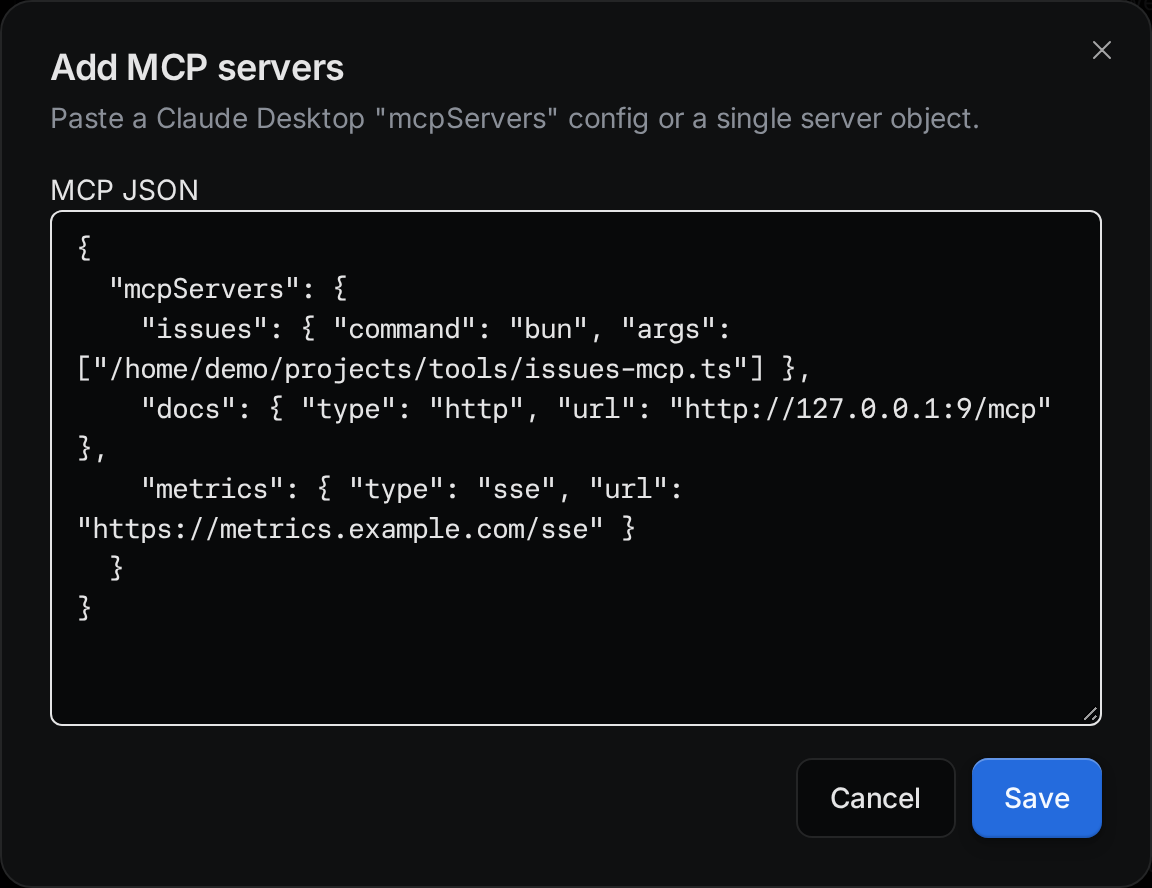
You can paste many servers at once in an mcpServers block, or a single server object on its own. If any server in the block has a mistake, Troupe adds none of them and lists each mistake, so you can fix the JSON and save again.
Each server in the JSON is one of three kinds:
-
stdio: a program that runs on your computer. Give its
command, and optionalargsandenv.{ "mcpServers": { "issues": { "command": "npx", "args": ["-y", "@acme/issues-mcp"] } } } -
HTTP: a web service. Give its
url, and optionalheaders.{ "mcpServers": { "docs": { "type": "http", "url": "https://docs.example.com/mcp" } } } -
SSE: an older kind of web service. Set
"type": "sse"and give itsurl.{ "mcpServers": { "metrics": { "type": "sse", "url": "https://metrics.example.com/sse" } } }
If you leave out type, Troupe treats a server with a command as stdio and a server with only a url as HTTP. Fields that Troupe does not use are dropped.
To edit a server as JSON, open its row menu, click Edit, and then click Edit as JSON.
env values and headers as plain text. In an env value, put a reference such as $GITHUB_TOKEN instead of the token itself. Header values are sent as written, so a reference does not work there.Check that a server works
Each server has a row with a colored dot.
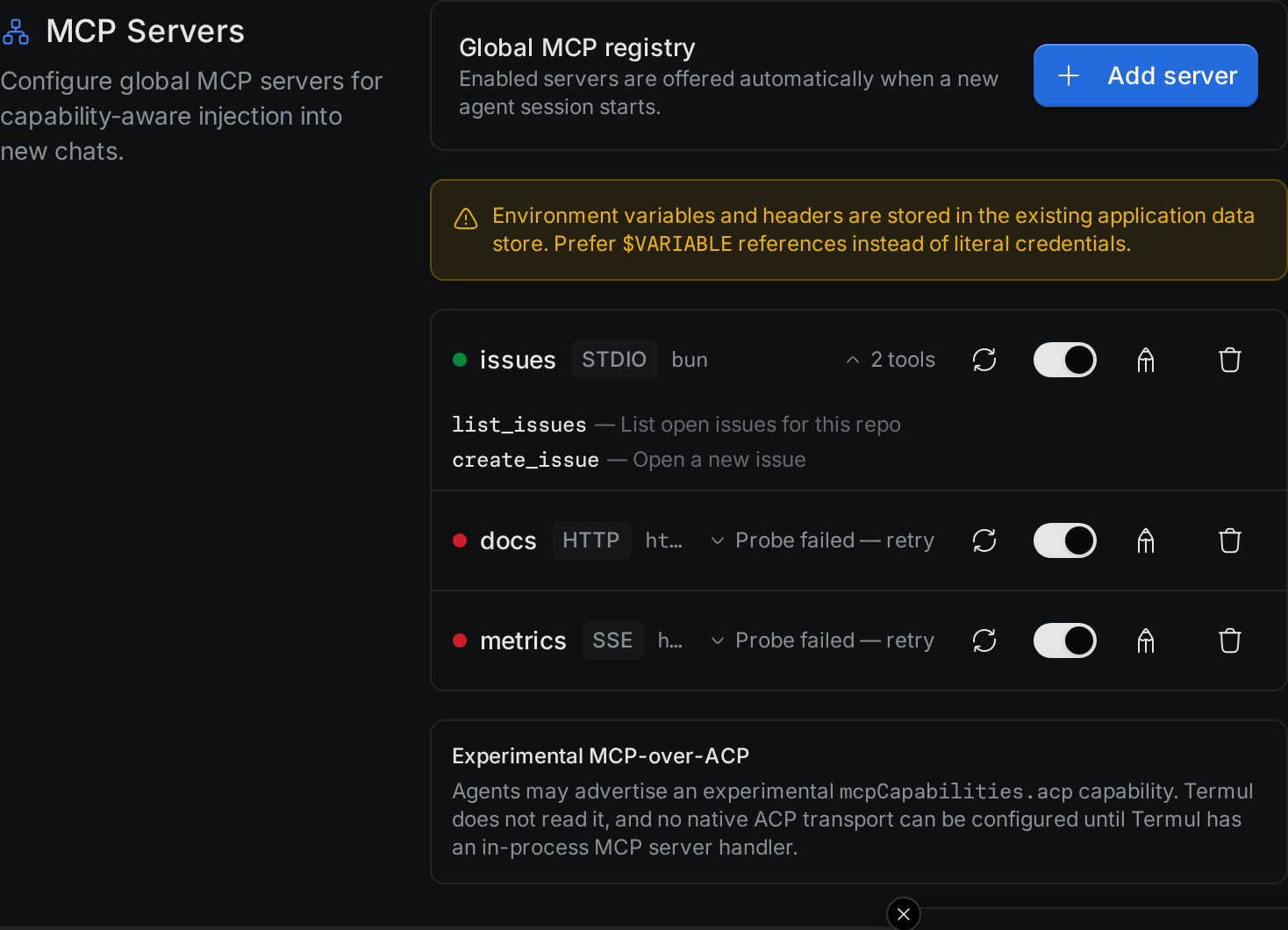
| Dot | Meaning |
|---|---|
| Green | Troupe reached the server. |
| Red | Troupe could not reach the server. Click the row's tools link to see the error. |
| Yellow | The server needs you to sign in. See Sign in to a server. |
| Gray | Troupe has not tested the server yet. |
To test a server, click its refresh button. To see the tools a server offers, click Show tools, or the tool count, such as 2 tools.
When Troupe tests a server, it replaces $NAME references in env with the values from the environment Troupe runs in.
Use the other buttons on the row to manage the server:
- The switch turns the server on or off. Agents get only the servers that are on.
- The pencil button opens the server in the same form you added it with. Click Edit as JSON to edit one server object instead, without the
mcpServerswrapper. - The trash button deletes the server.
Sign in to a server
Some HTTP and SSE servers need you to sign in with your account on that service. Their dot turns yellow, and the row gets a Connect button.
- Click Connect.
- Sign in on the page that opens in your browser, and allow access.
- Go back to Troupe. The button changes to Disconnect, and Troupe tests the server again.
In the browser version, the sign-in page opens in a new window, and a Finish signing in to dialog shows the sign-in link. If nothing opens, click Open, or click Copy and open the link yourself. You have five minutes to finish signing in.
- If your browser runs on the same machine as Troupe, signing in finishes by itself and the dialog closes.
- If your browser runs on another device, for example a laptop or phone connected to troupe-server, it ends on a
127.0.0.1address that fails to load or shows an error. Copy that full address from the address bar, paste it into Paste the redirect address, and click Complete sign-in.
If the dialog says the address does not belong to this sign-in, paste the full address that starts with the one it shows. To stop, click Dismiss, then click Connect to start again.
To remove the sign-in, click Disconnect.
Browse the MCP catalog
Under your server list, the MCP catalog group lists the MCP servers in the official MCP Registry. The line above the list shows how many servers it has. The box under the list says From the official MCP Registry, with a link that opens the registry in your browser, and when the catalog was last updated.
Keep the catalog up to date
Keep the catalog up to date is on by default. Troupe then downloads the official MCP Registry when it starts, checks it for changes every hour, and keeps the downloaded copy for the next start. The first download fetches the whole registry, which can take a minute or two, and later checks fetch only what changed. While it works, the status line shows its progress, then Up to date. If a check fails, the status line says why and when Troupe tries again.
Turn the switch off to stop it. The status line then says Sync is off. No catalog request leaves this host. The catalog keeps the copy it already has.
If the box says the catalog is the small sample bundled with this build, Troupe hasn't downloaded the full registry yet. Turn on sync, or wait for the download to finish.
Search and browse
- Type in Search the MCP catalog to filter the list. Use 8 words or fewer.
- Scroll to load more servers, or click Load more. If the list is still long, search to narrow it.
- If a server's row shows a Repository button, click it to open the server's source code in your browser. Some rows have no button.
Each server shows a state, and a short reason when it can't be installed as is:
| State | Meaning |
|---|---|
| Installable | Nothing else is needed on this computer to run this server. |
| Needs a runtime | Install the runtime named in the reason first, such as Node.js (npx), uv (uvx), Docker or the .NET SDK. |
| Unsupported | Troupe can't run this server. The reason says why. |
| Source only | The registry lists only the source code, with no package or hosted URL to install. |
Servers that the registry marks as deprecated have a Deprecated badge.
Servers whose publisher lists a logo show it next to their name. A server with no logo, or whose logo can't load, shows the first letter of its name instead. Logos load whether or not sync is on. Only the Troupe host downloads them from the publisher and keeps a copy for a few days, so a browser or phone connected to troupe-server gets each logo from that server, never from the publisher's site.
Install a server from the catalog
- Click Install on an installable server.
- If the server needs settings, such as an API key, fill in the form and click Review. Troupe hides the values of secret fields.
- Read the review. It shows the exact command and arguments, or the URL, that Troupe will save, with each environment variable and header. Click Approve to install, or Cancel to save nothing.
- Troupe adds the server to your list, turned on, and checks that it responds. If the server asks you to sign in, click Sign in to open its sign-in page in your browser.
A server you installed shows Installed in the catalog. Install stays off for servers that aren't installable, and on a connection that can only view.
If the review waits too long, or the server's details change before you approve, Troupe saves nothing and offers Start over.
Install from chat
You can also ask the agent in a chat to install a server. Paste one of these and say "install this":
- A docs link or a repository link
- The registry name of a server, such as
io.github.org/server - An
mcpServersJSON snippet
The agent reads the link and asks Troupe to install it. Troupe shows an approval card in the chat. The heading is the server name that will be saved. The card shows the same review as Settings: the command and arguments or the URL, each environment variable and header, folders from this computer, where the server comes from, and the launch digest.
Type secret values, such as an API key, on the card. Those values stay on the card. The agent does not receive them, and they are not written into the chat.
Choose Install to save the server, or Decline to save nothing. Nothing is saved before you choose Install. On troupe-server, a browser that has not passed the web token cannot answer the card. Troupe refuses that answer with permission_denied, the same rule as a host ticket. The desktop app answers from its own window.
After you install, the card and the agent tell you what to do next:
- Sign in, when the server asks for it. The card has a Sign in button.
- Install a missing program, such as
npx,uvx,docker, ordotnet, when the server needs it. - Start a new chat so the agent can use the new tools. The chat you are in keeps the tools it started with.
The server then appears in Settings > MCP Servers, the same as a server you add there. If the server is already in the list, Troupe does not add it again.
One list for every project
The list in Settings is one list for the whole app or server. Every project uses the same servers, including projects you add later.
GitHub-2. The old .termul/mcp-servers.json files stay in the project folders, but Troupe no longer reads them.Choose servers for a new chat
Below the chat box, on the right, the Connectors button shows the logos of up to three servers that are on, and a count such as +2 for the rest. On a phone, tap + in the chat box and then Connectors.
Click Connectors to open the MCP servers menu. Its header says how many servers are on. Each server has a switch. A server that needs you to sign in shows Needs sign-in with a Sign in item, which opens the server in Settings. Manage MCP servers opens the MCP servers page in Settings.
The switches there are the same switches as in Settings, so the change applies to later chats too. In a new chat, the menu says "Changes apply to the next chat you start." In a chat that already runs, it says "This chat still uses the previous servers." Click Reload this chat to start the chat's agent again with the new servers.
Troupe always offers stdio servers. It offers HTTP and SSE servers only to agents that say they support them.