Use Troupe on a phone
Chat with agents, answer approvals, use terminals, files and git from a phone.
On a phone, Troupe uses a layout made for a small touch screen. You see one chat, terminal or file at a time, and a menu slides in from the side for everything else.
Troupe switches to this layout when the browser window is 767 pixels wide or less. It also uses it for a phone turned sideways, when the window is less than 500 pixels tall. A desktop browser window that you make narrow gets the same layout.
To make changes from your phone, the phone must be allowed to. A link shared from the desktop app is view-only unless Allow full control was on when sharing started. See Give the other device full control. A server is view-only for other devices unless it runs with --allow-remote-writes. See Allow changes from other devices.
Find your way around
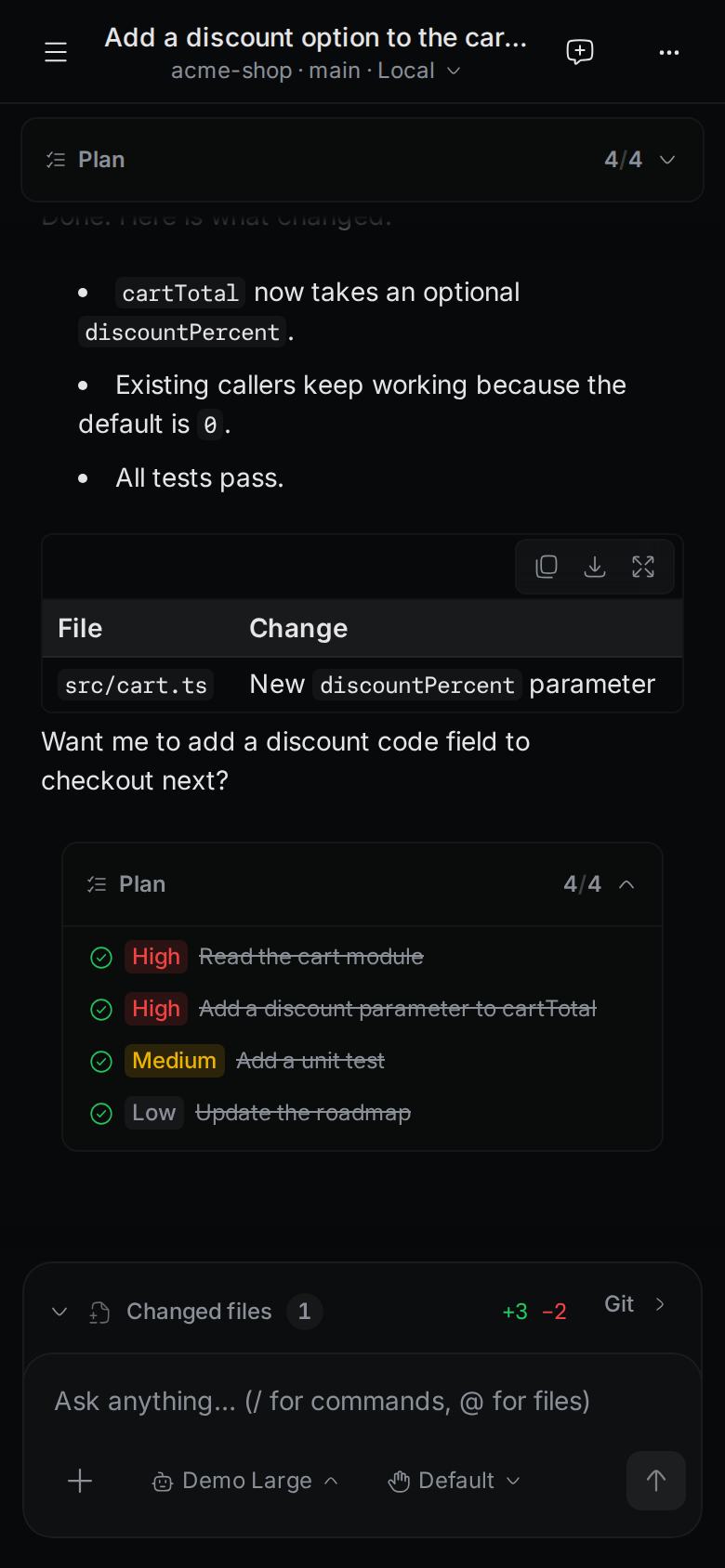
The picture was taken before the chat title and the project line moved to the left, next to the menu button.
The bar at the top has these parts, from left to right:
- Open menu (☰) opens the side menu.
- The title of the chat or terminal. Under it is the project, the branch, and Local or Worktree. Tap that line to switch to another project.
- A yellow number, when chats are waiting for you. Tap it to open the side menu.
- New chat in a chat, or New terminal in a terminal.
- More (⋯) in a chat, or Terminal actions (⋯) in a terminal.
Close menus and dialogs
Menus such as More and Terminal actions slide up from the bottom of the screen. They have a grab handle at the top. Tap the handle, or drag the handle or the title of the menu down, to close it.
The phone's Back gesture closes the menu, dialog or preview that is on top.
On a phone, the buttons at the bottom of most dialogs fill the width and stack, with the main button on top.
Buttons that a desktop shows only when you hover are always visible on a touch screen. For example, the ⋯ next to a chat in the side menu, the X on a file you added to a message, and the pin of each command in the command palette.
Open the side menu
Tap Open menu to see your chats, terminals and open files.
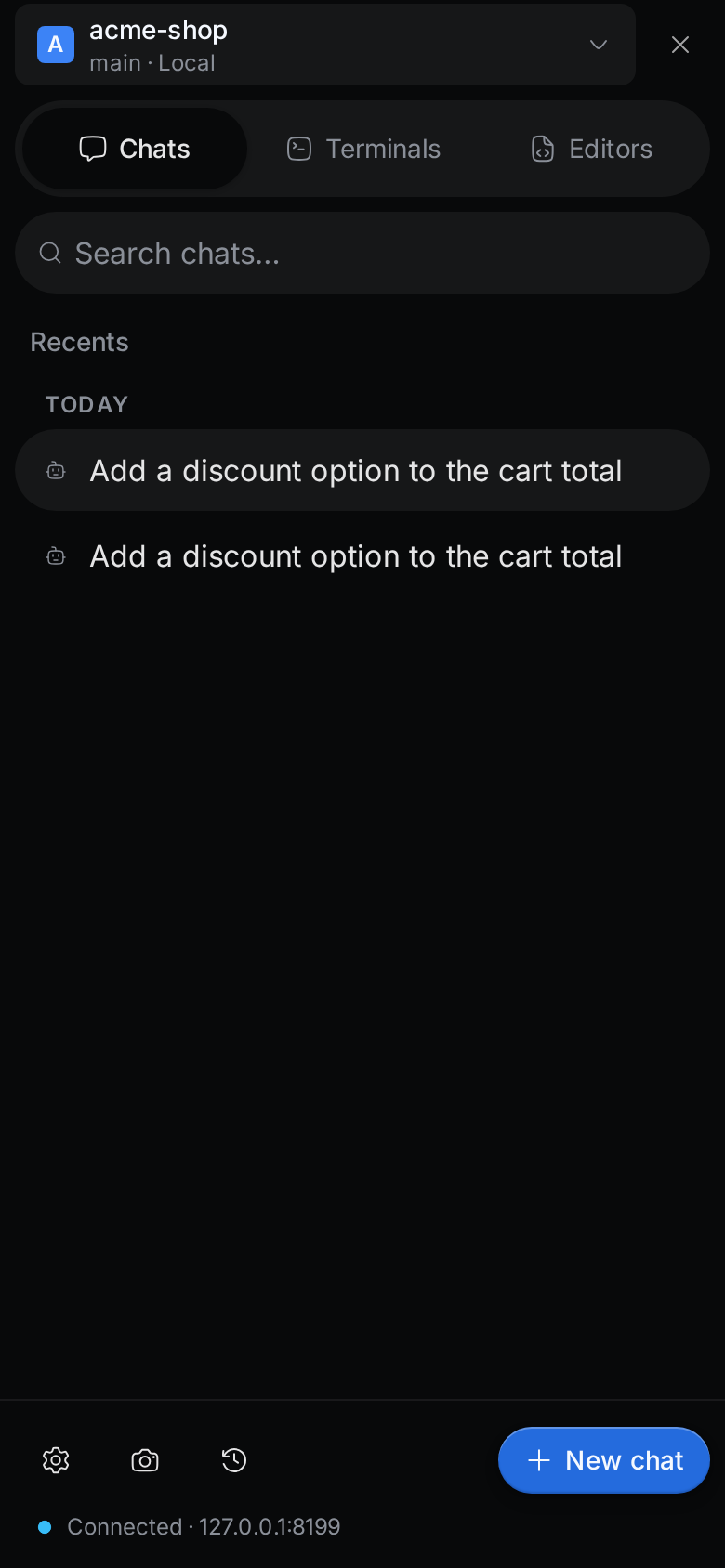
The picture was taken before the tabs became icons and the GitHub tab was added.
- The project at the top. Tap it to switch projects.
- Chats, Terminals, Editors and GitHub are four icon tabs that switch the list below. Chats shows a number when a chat waits for you. GitHub lists the project's issues and pull requests. See GitHub issues and pull requests.
- Search chats… filters the chat list.
- The list. Tap an item to open it.
The Chats list shows the chats you have open under Active. Closed chats are under Today, Yesterday and Earlier, sorted by when you started them. Each row shows when the chat was started, such as a time for today, "Yesterday 14:05", or a date for older chats. Reopening a chat does not change its time or its place in the list.
Below them, Quick chats lists the chats that have no project, and Older chats keeps chats with no project from older versions of Troupe. The Quick chats heading shows even before you have a quick chat. While you search, it shows only when a quick chat matches, so clear the search to see it again. Tap + (New quick chat) next to it to start one. See Start a quick chat.
Tap ⋯ at the right of a chat, or press and hold the chat, to see what you can do with it:
- Rename chat, for a quick chat.
- Copy chat reference copies a reference to the chat that an agent in another chat can follow. See Let an agent read another chat.
- Close chat, for a chat that is open.
- Delete chat, for a chat that is saved in the history. Troupe asks you to confirm.
The bottom of the side menu has these buttons:
- Settings (gear) opens the app settings.
- Snapshots (camera) opens your saved terminal layouts. See Terminals.
- Git history (clock) opens the commit history of the project.
- Automations opens the automations of the project. See Automations.
- New chat, New terminal or Browse files, depending on the list you are on. The GitHub list has no button here.
Use the More menu
In a chat, tap More (⋯) for the actions that don't fit in the top bar.
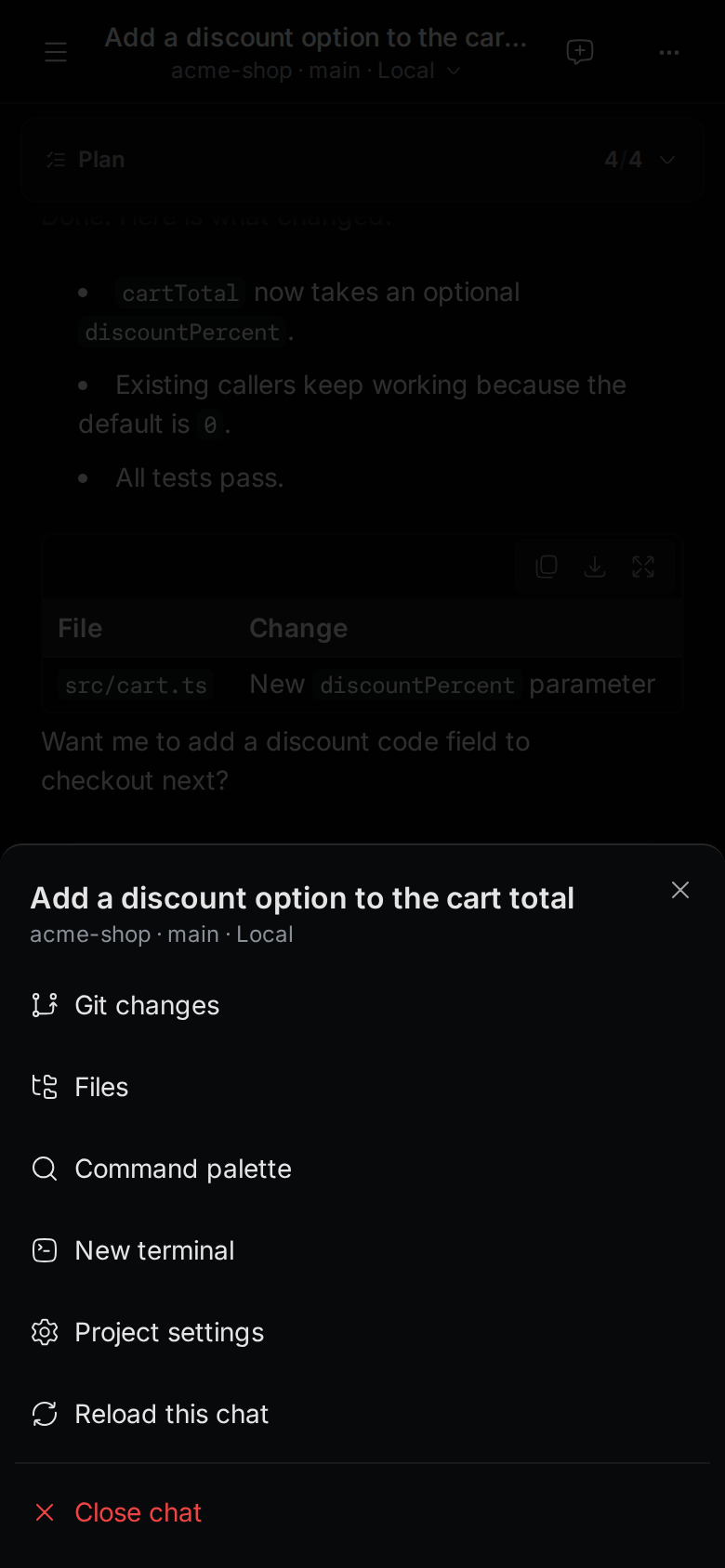
The picture was taken before the menu got a grab handle at the top in place of the close button.
- Git changes opens the changed files and the commit form.
- Files opens the file browser.
- Command palette opens the command palette.
- New terminal opens a terminal in the project.
- Project settings opens the settings of this project.
- Reload this chat restarts the chat on a new agent process. When it is off, the reason shows under it.
- Close chat closes the chat.
On other tabs, such as a file or git history, the last item is Close tab.
Write a message
The message box at the bottom of a chat has four controls: +, the model pill, the context ring, and send. The model pill shows the agent's icon and the model name. In a new chat, the row has +, the model pill and send.
Tap anywhere in the message box to type. On a phone, the return key of the keyboard adds a new line. While the list of commands or files you can mention is open, the return key picks the highlighted item instead. To send, tap the send button. With a hardware keyboard, Ctrl+Enter or Cmd+Enter also sends.
Pick a model
Tap the model pill to open Select model:
- Provider at the top shows the current agent. Tap it to see all agents, with a search box, grouped into Ready, Needs setup and Install. Tap an agent to see its models. An agent under Needs setup is set up in the sheet: Troupe saves it, starts it, and asks you to sign in when the agent needs it. You don't have to open Settings.
- The agent's models, with a short description. Tap the star of a model to add it to your favorites on this device.
- Effort, Mode, Fast and the agent's other options.
- Usage shows your Claude account's 5-hour usage.
Tap the back button or use the phone's Back to leave a sub-list.
Add to the chat
Tap + to open Add to chat:
- Camera, Photos and Files attach a picture or a file. Camera and Photos are off when the agent can't take images.
- Mention a file adds a file from the project.
- Commands opens the agent's commands and skills.
- MCP servers shows how many servers are on, and lets you turn them on or off.
Each file you add shows as a chip above the message box. Tap the X on the corner of a chip to remove the file.
Tap the chip of a picture to see it full screen. The top of the preview has Close preview (X), the file name, and Remove, which takes the picture out of the message. The bottom shows which picture it is and its size, for example "1 of 2 · 120 KB". To close the preview, tap X, tap beside the picture, or use the phone's Back gesture.
Copy, retry or select a reply
Under the last reply of the agent, these buttons are always visible:
- Copy copies the reply.
- Retry runs the turn again. It shows only when the chat can run the turn again.
- More actions (⋯) opens the actions of the reply.
On other messages, the buttons are hidden. Press and hold a message to open its actions. The menu is called Reply for a reply of the agent, and Message for a message you sent. It has:
- Copy.
- Select text, to select part of the message.
- Retry for a reply of the agent, when the chat can run the turn again, or Edit for your own message. Edit puts the text back in the message box so you can change it.
A long press on a message opens this menu, so the phone doesn't select text there. To copy part of a message, tap Select text. The message gets a colored frame, and the line under it says "Press and drag to select. Tap Done to go back." Select the text as you do in other apps. Tap Done, or use the phone's Back gesture, when you are finished.
Answer an approval
When an agent asks for permission, the chat shows Approval needed above the message box. The agent waits until you answer.
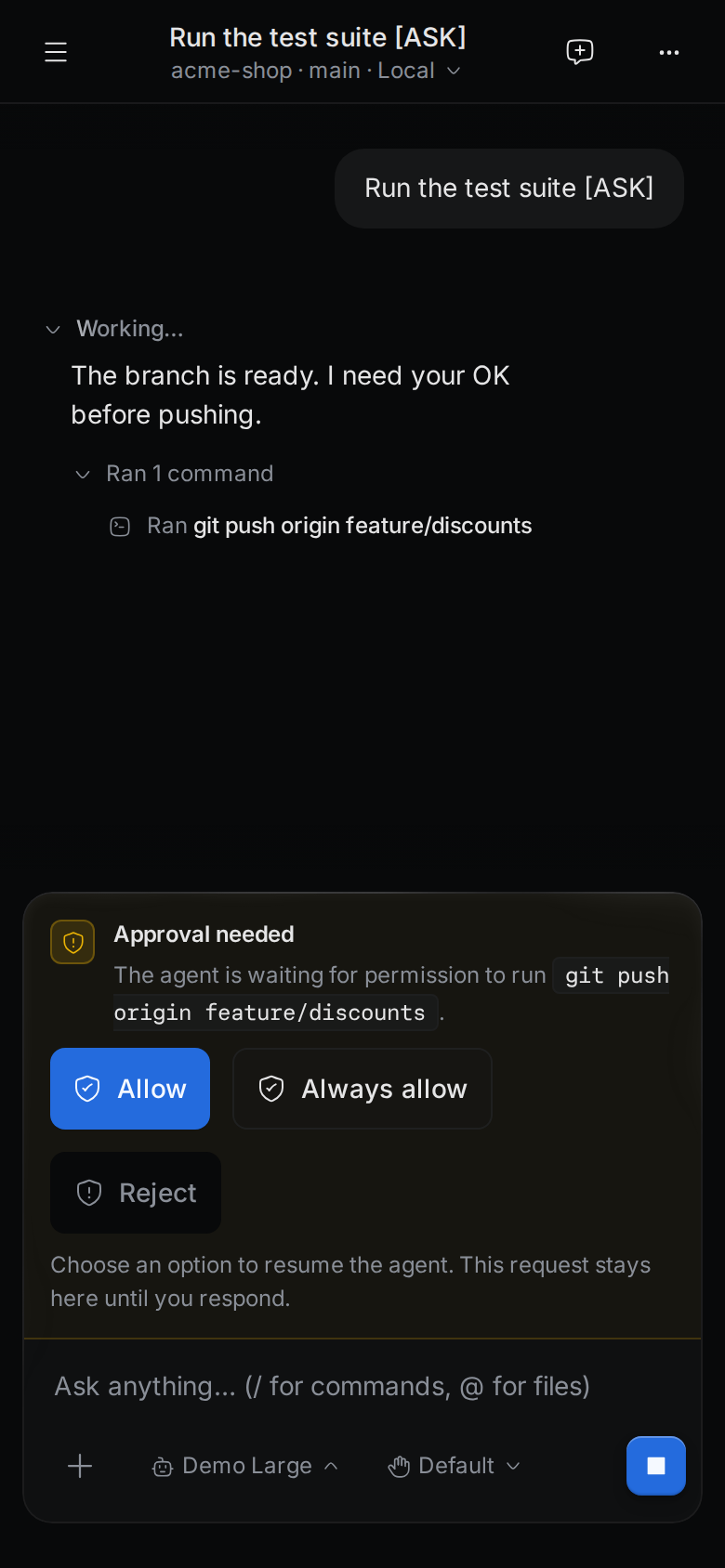
Tap one of the buttons. The agent decides which buttons you get. They are often Allow, Always allow and Reject.
For a short moment after the card appears, Troupe ignores taps on it. This stops a tap meant for something else from approving by accident.
If a chat in the background needs you, the top bar shows a yellow number. Open the side menu. Chats shows the same number, and the chat that waits is in the list. To get a notification instead, see Get notifications.
Use a terminal
To open a terminal, tap New terminal in the top bar of a terminal, in the More menu, or at the bottom of the Terminals list.
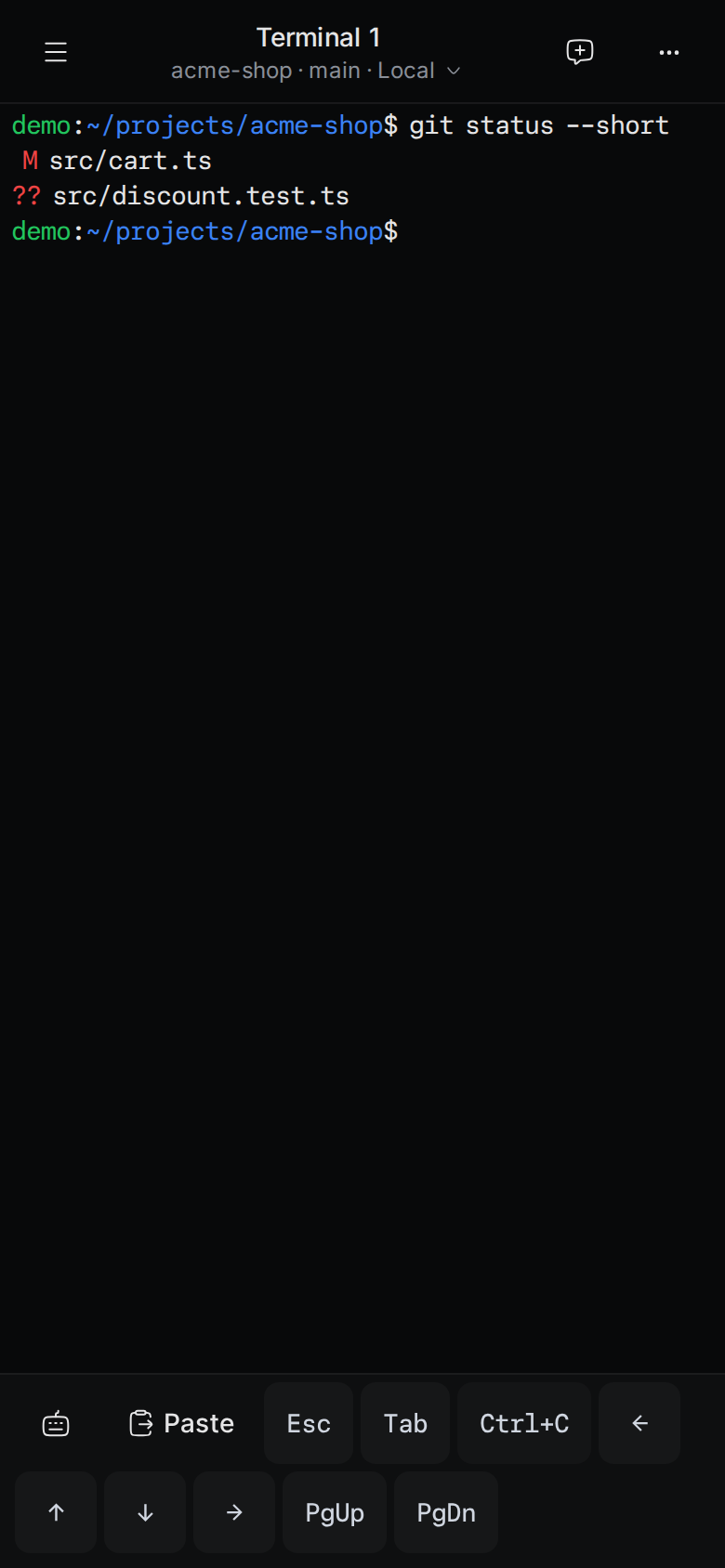
The picture was taken before the key bar became one row.
A phone keyboard has no Esc, Tab or arrow keys, so Troupe adds a key bar under the terminal. The key bar is one row, so the terminal keeps more lines above the keyboard. The keyboard button and Paste stay at the left. Swipe the keys to the left to see the rest. The end of the row fades while more keys are hidden.
- Paste pastes the text from your clipboard.
- Esc, Tab and Ctrl+C send those keys.
Ctrl+Cstops the running command. - The four arrows move the cursor or walk through your command history.
- PgUp and PgDn scroll programs that use those keys.
The keyboard button at the left of the key bar hides the keys. Paste stays. Tap the keyboard button again to show the keys.
Tap Terminal actions (⋯) for more:
- Rename terminal.
- Restart terminal.
- Command history to find and run an earlier command.
- Git changes, Files, Command palette and Project settings, as in the More menu.
- Close terminal.
Browse and edit files
Tap More, then Files. You can also tap Browse files at the bottom of the Editors list.
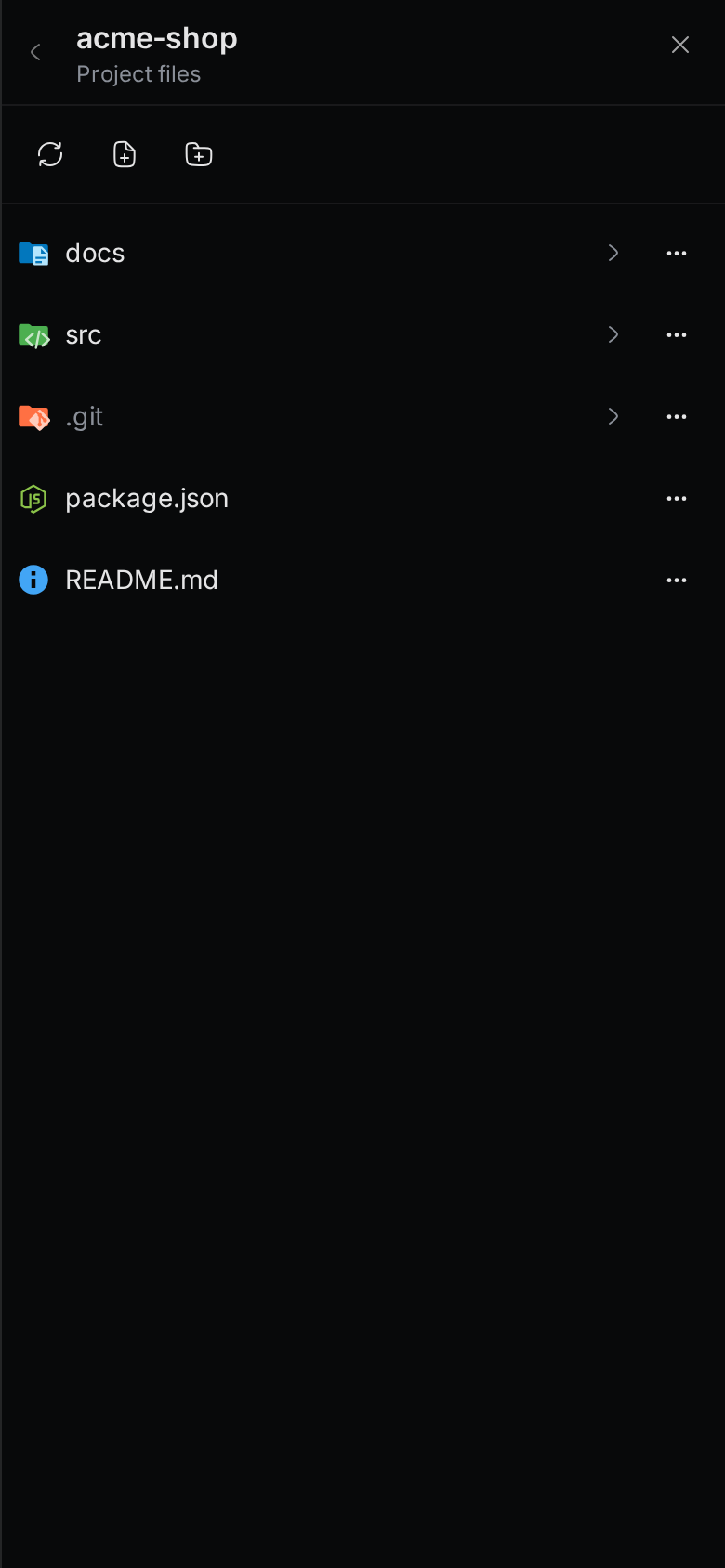
- Tap a folder to open it. Tap the back arrow to go up.
- Tap a file to open it in the editor. The editor has a Save button.
- The buttons at the top refresh the folder and create a New file or a New folder.
- Tap ⋯ next to an item to Rename, Duplicate or Delete it.
Files you opened are in the Editors list of the side menu.
Commit your changes
Tap More, then Git changes.
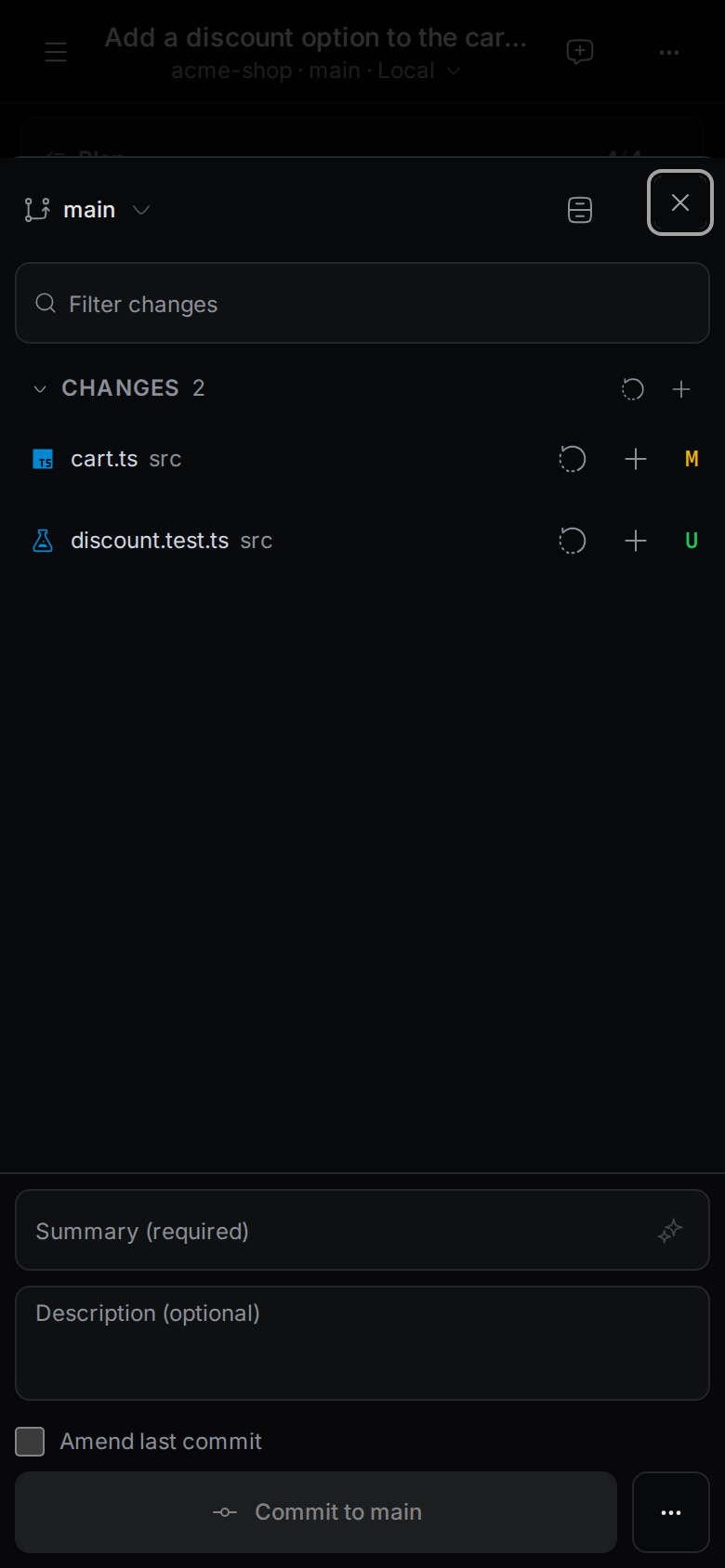
- Tap + next to a file to stage it, or + next to CHANGES to stage all files.
- Tap the round arrow next to a file to discard its changes.
- Tap the branch name at the top to switch branches.
- Type a Summary, and a Description if you want, then tap the commit button.
For more about git in Troupe, see Git.